Collection List Banner
The Collection List Banner block displays a customizable banner at the top of the collection list page. It is used to introduce the collection section, highlight branding, and create a strong visual entry point for users.
This block supports both image and color backgrounds, along with flexible text positioning and styling options.

Settings
| Setting | Type | Description |
|
|---|---|---|---|
| Banner height | range | Controls the height of the banner area in pixels. |
|
| Show Banner | checkbox | Enables or disables the banner display. |
|
| Banner Image | image picker | Selects an image to use as the banner background. |
|
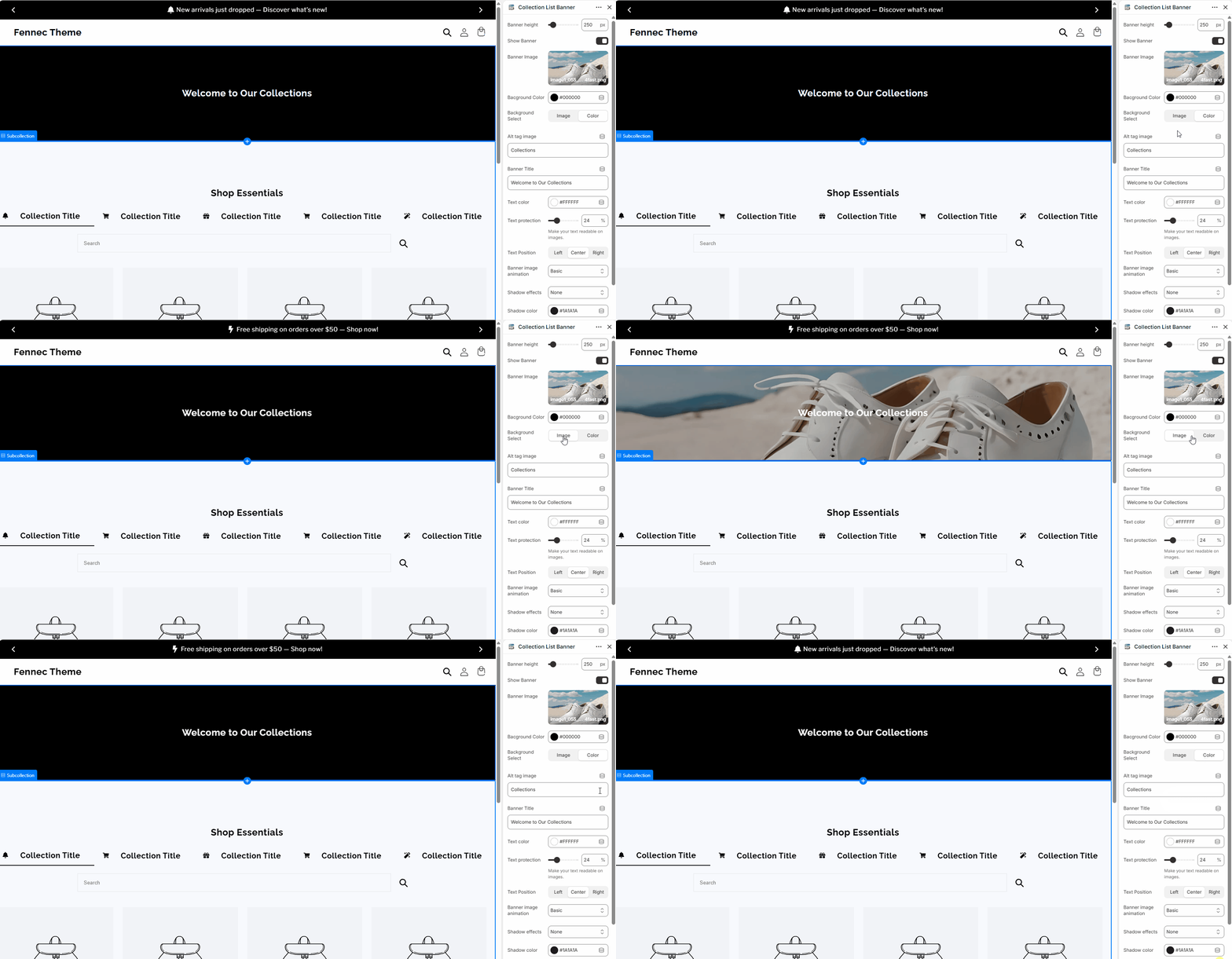
| Background Select | select | Chooses between using an image or a solid color as the background. |
|
| Background Color | color | Sets the background color when image is not used. |
|
| Alt tag image | text | Defines the alt text for accessibility and SEO. |
|
| Banner Title | text | Sets the main heading displayed on the banner. |
|
| Text color | color | Controls the color of the banner text. |
|
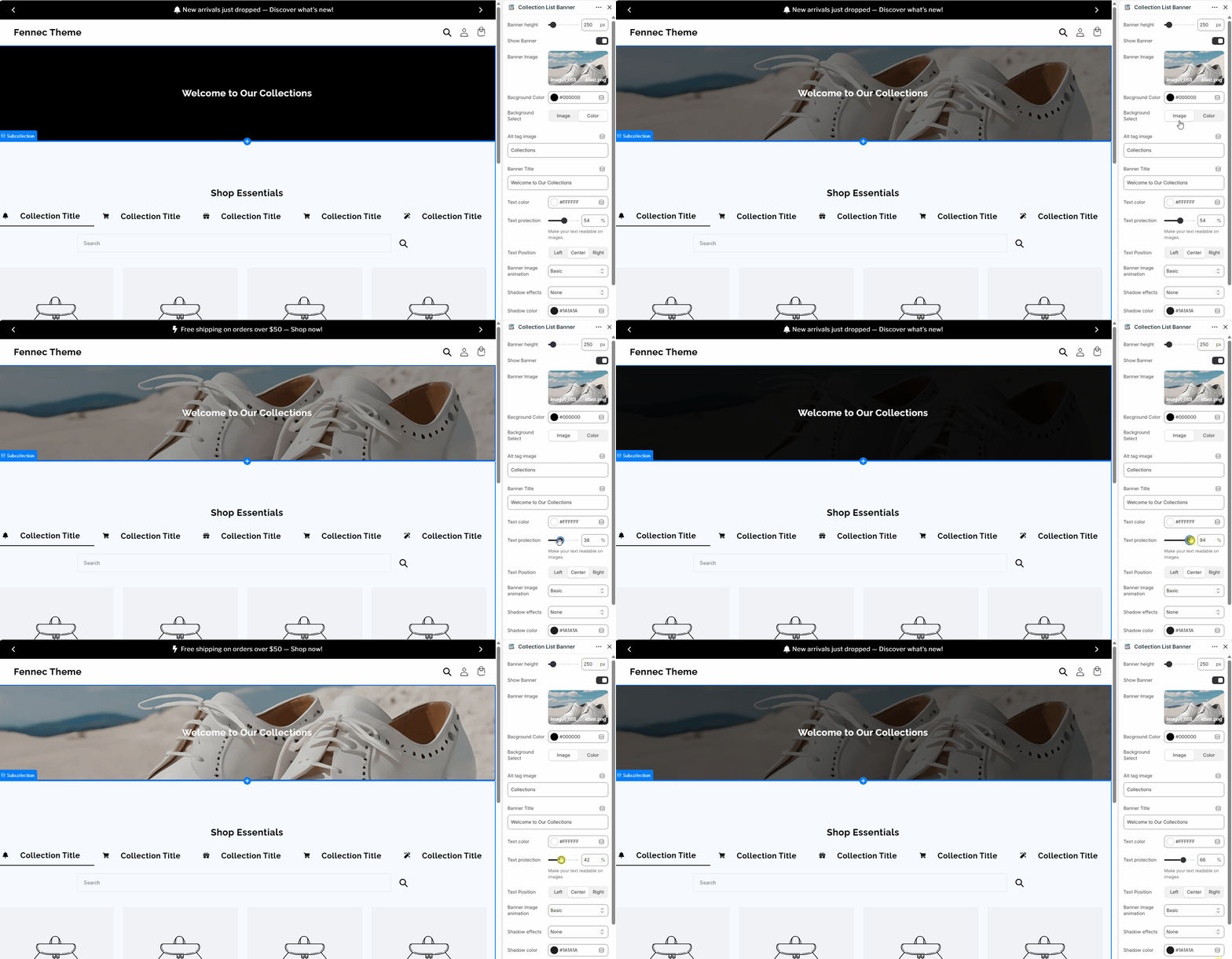
| Text protection | range | Adds an overlay to improve text readability over images. |
|
| Text Position | select | Aligns the text: Left, Center, or Right. |
|
| Banner image animation | select | Applies animation effects to the banner image. |
|
| Shadow effects | select | Adds shadow styling to enhance visual depth. |
|
| Shadow color | color | Defines the color of the shadow effect. |
|
Banner Settings – Overview
-
Banner height
Lets you adjust the height of the banner to fit your layout.
-
Show Banner
Turn the banner on or off anytime without losing your settings.
-
Banner Image
Upload or choose an image to use as the banner background.
-
Background Select
Choose whether to use an image or a solid color for the background.
-
Background Color
Pick any color for the background when not using an image.
-
Alt tag image
Add a description for the image to improve accessibility and SEO.
-
Banner Title
Enter the main text you want to display on the banner.
-
Text color
Choose any color for the banner text to match your design.
-
Text protection
Add an overlay to make text easier to read on top of images.
-
Text Position
Choose where the text appears: left, center, or right.

-
Banner image animation
Apply animation effects to make the banner more dynamic.

-
Shadow effects
Add shadow styles to create depth and improve visibility.

-
Shadow color
Choose any color for the shadow effect to match your banner style.

Notes
- Use high-quality images for better visual impact.
- Enable text protection when using bright or detailed images to maintain readability.
- The banner title should be short and clear to improve user focus.
- Image and color backgrounds can be switched depending on design preference.
- Works best as the first element on the collection page.